Tutorialintermediate
NSPanel Lovelace UI — Home Assistant Dashboard on Sonoff NSPanel
Transform the Sonoff NSPanel into a full Home Assistant dashboard using Tasmota Berry and the community NSPanel Lovelace UI firmware. Control lights, climate, media, and scenes from the touchscreen.
Boards:ESP32
Firmware:Tasmota
Use Cases:Dashboard DisplayHome AutomationSmart Home ControlWall PanelClimate ControlScene Controller
NSPanel Lovelace UI — Home Assistant Dashboard on Sonoff NSPanel
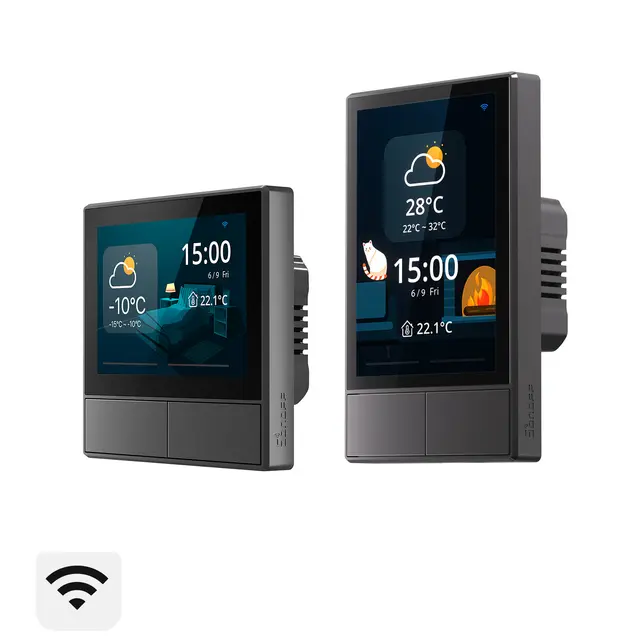
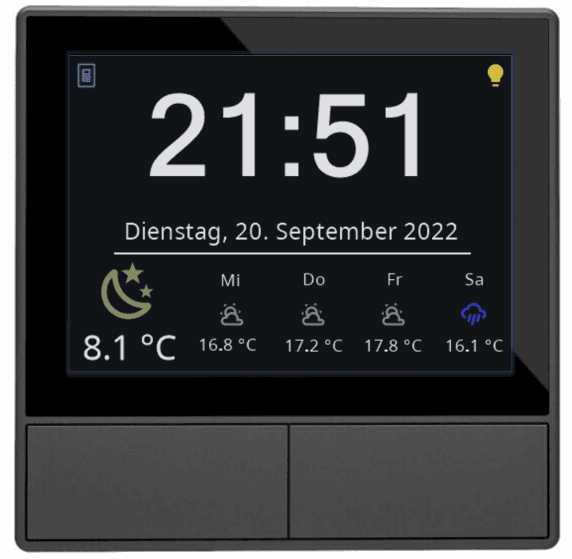
Transform the $50 Sonoff NSPanel into a wall-mounted Home Assistant control panel with the community-built NSPanel Lovelace UI project. Built on Tasmota with Berry scripting, it provides a beautiful touchscreen interface for controlling your entire smart home.
Why This Project
- $50 Home Assistant dashboard — cheapest wall-mounted touch panel
- Beautiful UI — custom pages for lights, climate, media, weather, alarms
- Physical relays — still works as a light switch even without WiFi
- Active community — 5000+ GitHub stars, regular updates
- HA Blueprint — zero-code configuration option
What You Get
- Home screen — weather, time, room temperature
- Light control — brightness, color, color temperature
- Climate control — thermostat with setpoint, mode, fan speed
- Media player — play/pause, volume, track info
- Alarm panel — arm/disarm with PIN code
- Scene cards — trigger any Home Assistant scene
- Entity pages — control any HA entity type
- Screensaver — clock with weather and date
Hardware Required
| Component | Purpose | Est. Cost |
|---|---|---|
| Sonoff NSPanel (EU or US) | Touchscreen wall switch | $50 |
| 3.3V FTDI adapter | For serial flashing (one-time) | $3 |
Installation Steps
1. Flash Tasmota
- Open the NSPanel back panel (4 screws)
- Connect FTDI to serial header: 3.3V, TX→RX, RX→TX, GND
- Hold GPIO0 button, connect power
- Flash
tasmota32-nspanel.bin - Configure WiFi
2. Flash Display TFT
After Tasmota is running, flash the custom display firmware:
# In Tasmota console, flash the Lovelace UI TFT:
FlashNextion http://nspanel.pky.eu/lovelace-ui/github/nspanel-v4.3.5.tft
3. Install HA AppDaemon Backend
# In Home Assistant:
# 1. Install AppDaemon add-on
# 2. Add NSPanel Lovelace UI app
# 3. Configure apps.yaml with your entities
4. Alternative: HA Blueprint (Zero-Code)
For simpler setups, use the NSPanel HA Blueprint instead of AppDaemon:
- Import the blueprint from GitHub
- Configure entities via the HA UI
- No YAML editing required
Configuration Example
# apps.yaml for AppDaemon
nspanel_living_room:
  module: nspanel-lovelace-ui
  class: NsPanelLovelaceUIManager
  config:
    panelRecvTopic: "tele/nspanel/RESULT"
    panelSendTopic: "cmnd/nspanel/CustomSend"
    pages:
      - type: cardGrid
        title: Living Room
        entities:
          - entity: light.living_room
            name: Main Light
          - entity: climate.living_room
            name: Thermostat
          - entity: media_player.tv
            name: TV
          - entity: cover.blinds
            name: Blinds
Compatible Devices
- Sonoff NSPanel (EU version: 86mm, US version: 120mm)
- Sonoff NSPanel Pro (larger screen, different architecture — separate project)